 screen.free
/ answering machine
Make an answering machine with just the Yoto app.
Away for work? Record messages on your phone that turn up on a Make Your Own card at home.
This is exactly how we made our first "answering machine", before we built our app. Dad left messages for the kids during a work trip, from the airport and the hotel. They thrilled to check their messages morning and night just by popping in the card.
It's totally free, and you don't need us. Our app will save you when more people want to leave messages. We'll get to that at the end. But if it's only you, this may be all you need.
What you'll need
- A Yoto player at home, and a blank Make Your Own card.
- The Yoto app, signed in to the account with the player.
- About ten minutes before you leave.
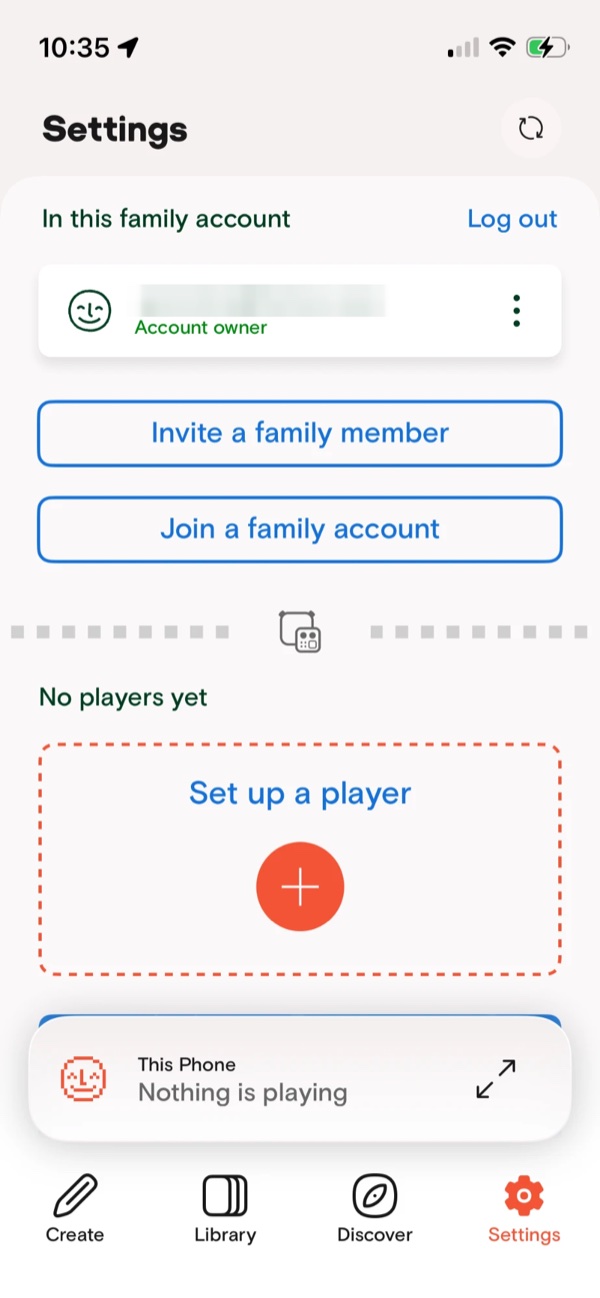
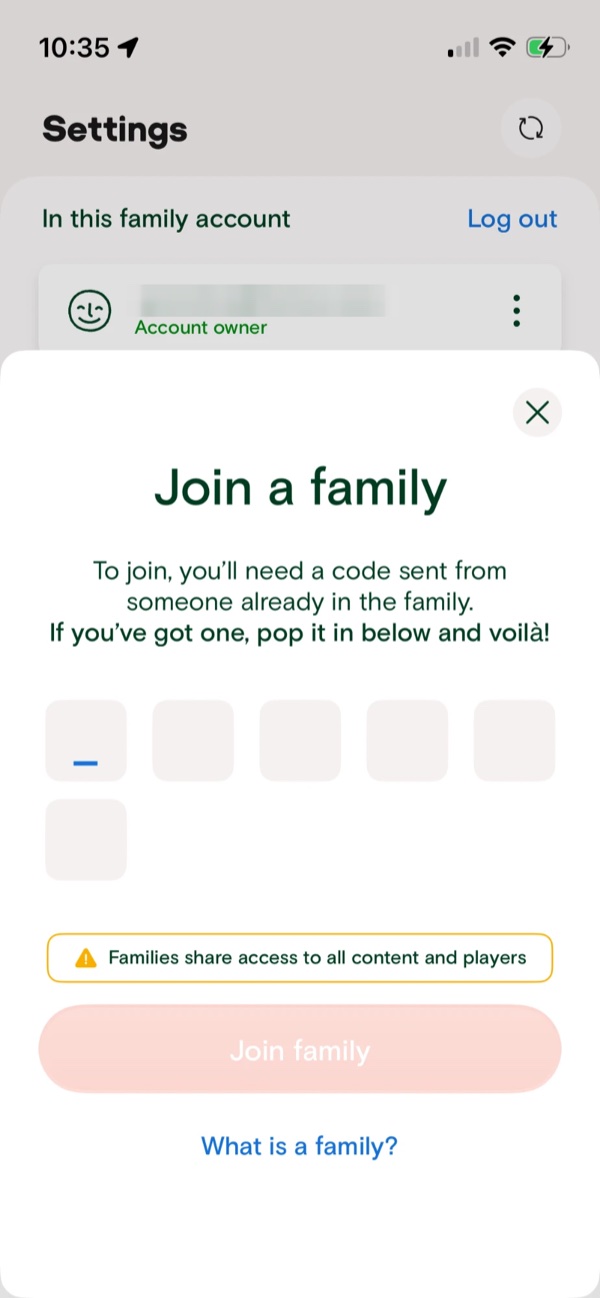
If someone else set up the Yoto, join their Family Account first. They tap Invite a family member in the app's Settings and send you a code. You tap Join a family account and enter it.
Before you leave
-
1
Record a first message
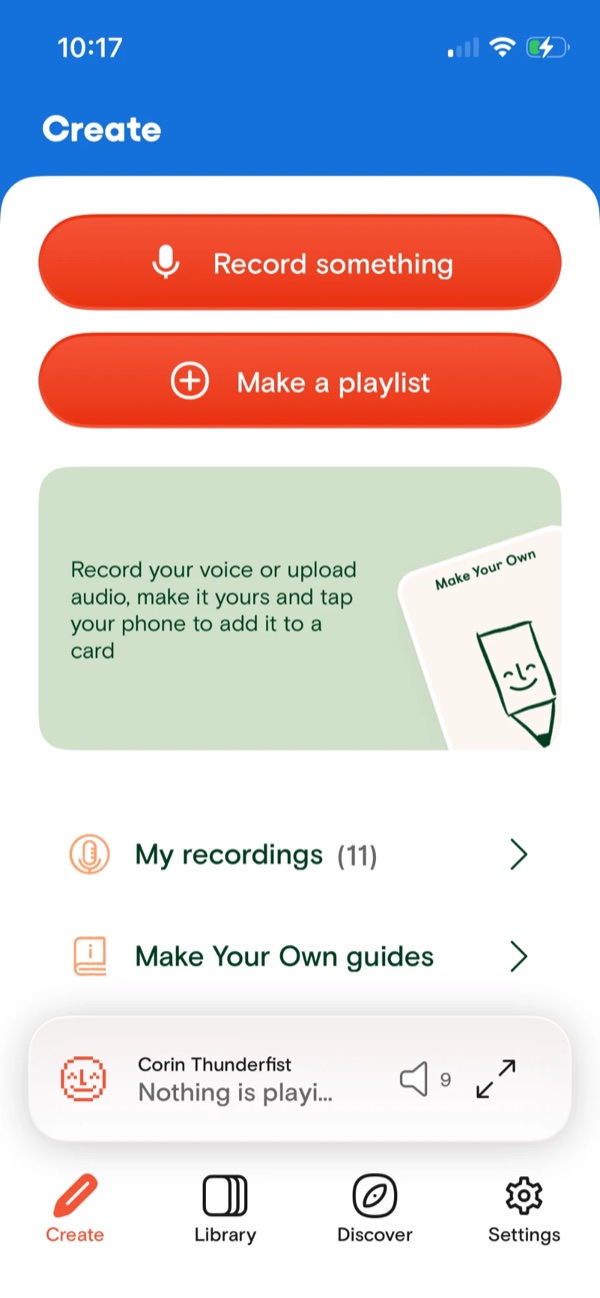
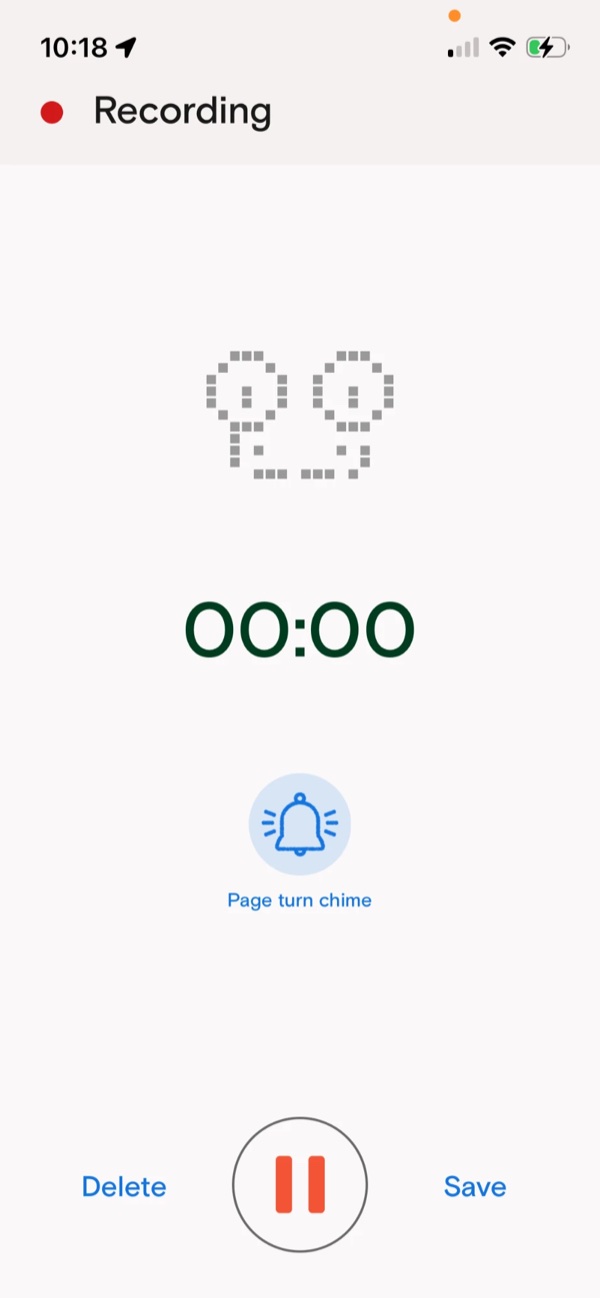
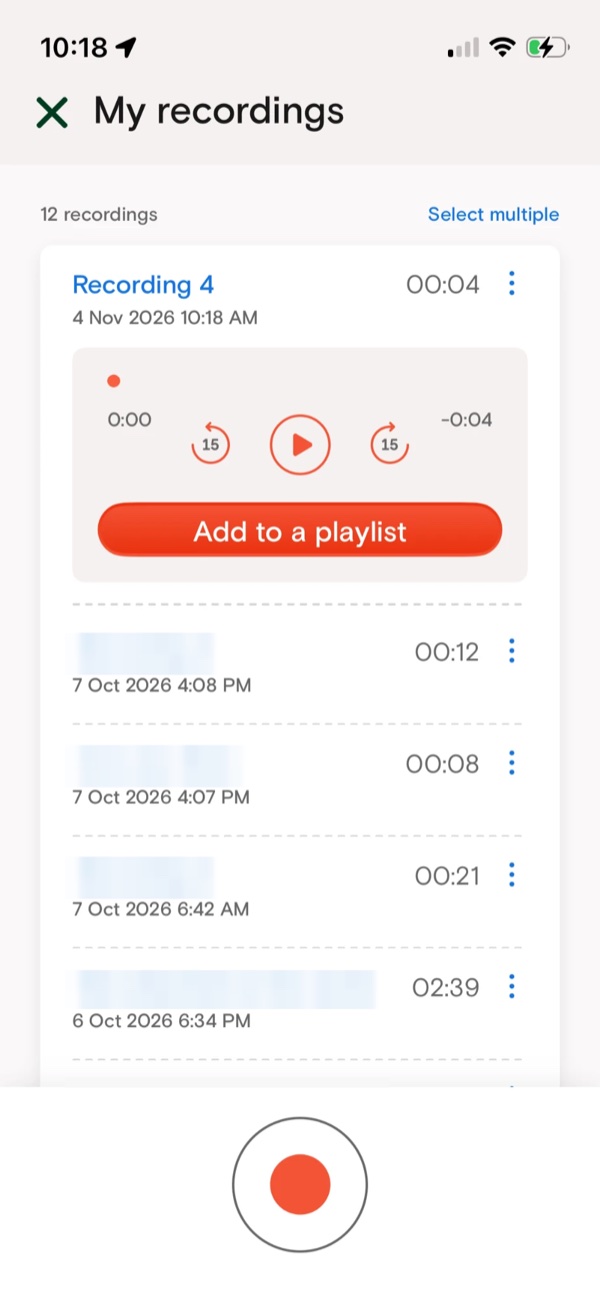
On the Create tab, tap Record something. There's a short countdown, then talk. Tap Save when done, and it goes into My recordings, where you can listen back.
-
2
Make a playlist
Choose the recording, tap Add to a playlist, and make a new one. Give it a name your child will know, like "Messages from Dad."
-
3
Link it to a card
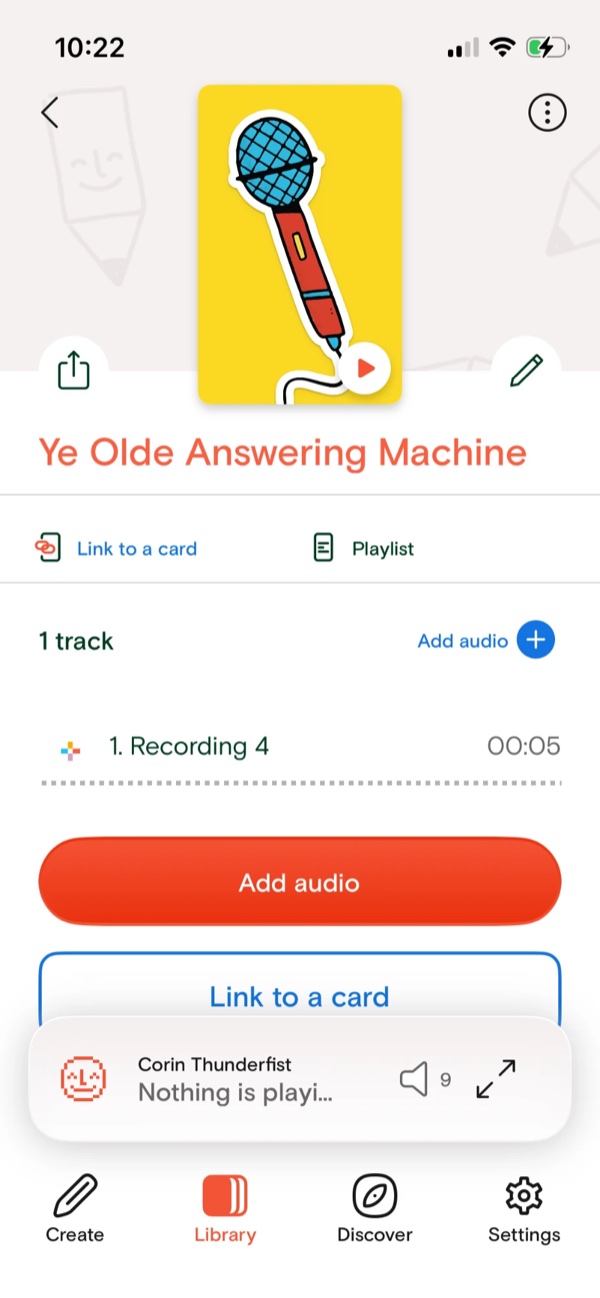
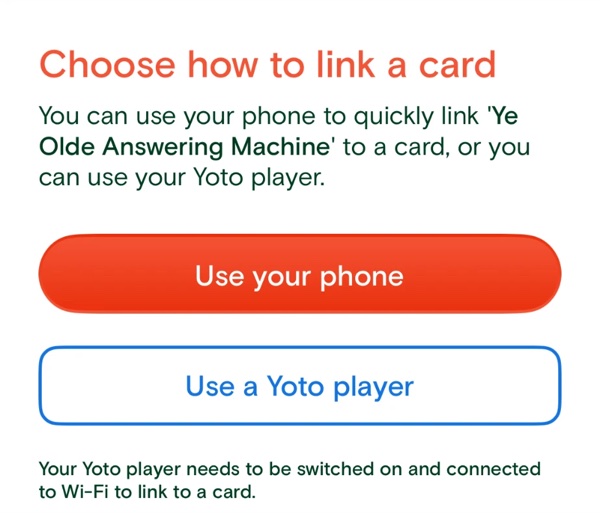
Open the playlist, tap Link to a card, and have a Make Your Own card ready. You can use your phone or the player, which needs to be on and connected to wifi. You'll only do this once.
-
4
Hand over the card
Your child puts it in the player and hears you. The answering machine is set up.
From the road
-
5
Add to the same playlist
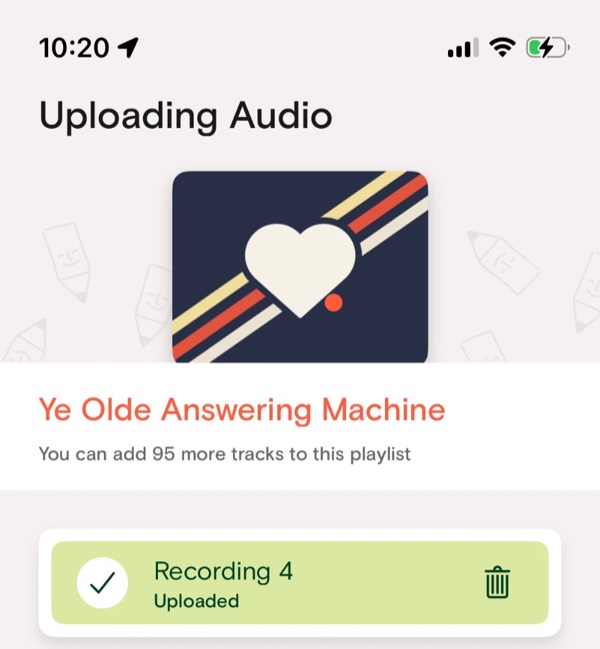
Record a message, then add it to the same playlist. Nobody at home has to do anything: Yoto updates every card linked to it.
-
A few things that help
- Take the card out and put it back. A card already in the player may not notice something new until it's read again.
- Text home. The app won't tell anyone a new one has arrived, so shoot a quick "I left one!" to someone at home.
- Forgot to link the card? If a grown-up at home is on the same Family Account, your playlist shows up in their app, and they can link it from there.
- Keep it pithy. A playlist holds 100 tracks, and a minute or two can be plenty for a small child.
- Put the date in the title. You can rename a recording, and it'll help you find one later.
That's the free way, and for one parent on the road it works well. For everyone else who wants to leave messages, we think our way is easier, and we'll explain what we mean below.
Try it free for 14 daysWhen someone else wants to leave a message
All of this works because you're recording on the account the player belongs to. Grandma or Uncle Edmund isn't. Yoto's guide covers a few ways to bring in family, and here's how we weigh them.
- Grandma makes a Yoto account and shares a playlist
-
She records and makes a playlist in her own account, then sends you a link. You
listen, accept it, and link it to a card. Her messages reach that card automatically, if she follows the solo answering machine guide, above.
If cost is top priority, this is the route we'd pick.
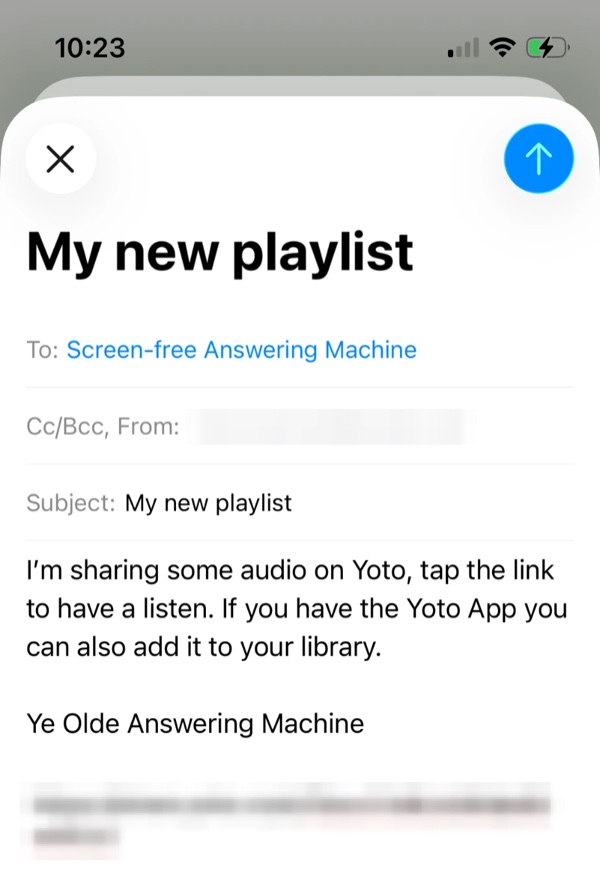
- She sends you audio files
- Uncle Edmund records an MP3 with any voice recorder and sends it to you, and you upload it to your own playlist. He still doesn't need a Yoto account, but congrats! You've just become the family's switchboard. Every message is in limbo until you save it, upload it, and add it to the playlist, so when you're busy or away, the kids get no messages.
- Add them to your Family Account
- Great for a spouse, but perhaps a bit much for anyone else. Yoto warns that "families share access to all content and players", every member can control your players and their settings, and remove other members. And an account can only be in one family, so folks who join your family account leave any other they're in. For say, a grandad with grandchildren in two homes, this won't work for both.
- Let family sign in as you
- Yoto's guide lists this option, too. We'd skip it for security. Your email and password give others access to everything your account can do, and a family with several relatives could quickly lose control of their password. Even worse if it's a password you reuse all over the internet.
Where this stops working
For one parent on the road, it works well. It gets harder when you want grandparents in on it, and then a cousin, then a Yoto friend down the road. Every free option carries a non-financial cost: either they all take on Yoto, or you end up running the whole thing.
Everyone starts with a chore
Before Grandma records a word, she needs the app, an account, a playlist, and a link to send you. Only the person who made a playlist can add to it, and a card points at one playlist at a time. So five relatives means five Yoto accounts, five playlists, five links, and five cards for your child to keep track of.
Links can be forwarded
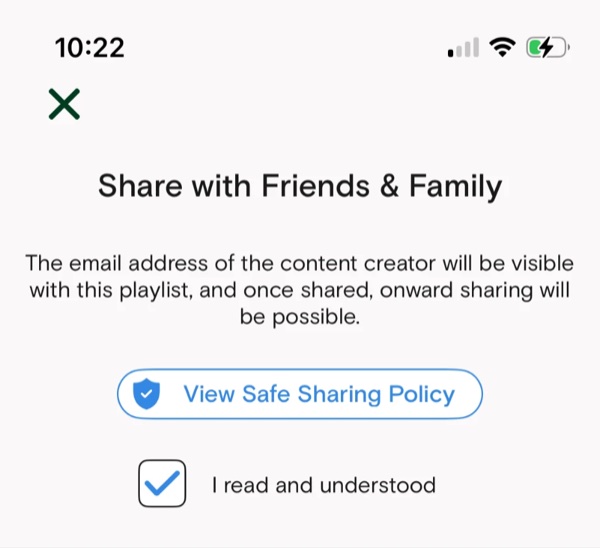
Yoto is clear about this: once a playlist is shared, anyone with the link can listen and pass it on, with the creator's email attached. For a story, that's fine. For your family's voices talking to your child, you probably want it locked down.
You don't hold the controls
A shared playlist belongs to its creator, so you can't edit it, and whatever they add goes straight to the card without you hearing it first. That's fine with one person you trust. It's a bigger issue across a whole family, and the other options give up control of Yoto player settings or your password.
Or it's all on you
Sending audio files spares everyone the accounts and the links, but makes you the bottleneck. Five requests asking whether you got the message. Ain't nobody got time for that.
The answering machine goes silent
Nothing tells you a message has arrived, and nothing reminds anyone to leave one. Perhaps the first month is lovely. By the third, someone has to keep asking for notes.
The rest of the family shouldn't need Yoto
So we built the Screen-free Answering Machine, a small web app that works with just your Yoto account. You set it up and link one card in the Yoto app, once. Then everyone leaves messages on one playlist that lives in your own Yoto library. Nobody installs anything. There's no password to remember.
Grandma's first message, the free way
- She downloads the Yoto app and makes an account.
- She records, and makes a playlist.
- She shares a link with you, with her email attached.
- You listen, accept it, and link it to a spare card.
- Your child has one more card to keep track of.
Grandma's first message, in the app
- She opens the invitation you sent, and taps to join.
- She taps the red button and talks.
- She sends it when she's happy with it.
It joins everyone else's on the same card, with a chosen icon on the player. There's nothing for you to do.
Connections keep going without you, too. If someone's been quiet, we remind them, so the nagging isn't your job. You're notified when a message arrives (or skip notifications if you like). And you still decide who gets to record to the tape.
| The Yoto app | Screen-free Answering Machine | |
|---|---|---|
| Who can record | One person, per playlist and per card. | Everyone you invite, on one tape and one card. |
| Who needs a Yoto account | Everyone who records, or you upload their audio for them. | Only you. Everyone else signs in with their email. |
| Who's in charge | Each person, of their own playlist. | You. Invite, pause or remove anyone, and limit how many messages they leave a day. |
| Passing it on | Anyone with a shared link can listen and share it further. | No links to pass around. Nothing is public or re-shareable. |
| Who hears what | Anyone with a shared link hears every track. | In our app, people hear only their own messages. You hear them all, and everything plays on the Yoto. |
| Removing a message | Only the person who made the playlist. | You can delete any message, and everyone else can delete their own. |
| Keeping it going | Up to you. | Up to three gentle reminders to anyone who's gone quiet, and you can ask for a message any time. |
| Knowing there's a new one | Someone has to tell you. | One quiet notice, in the app, by notification, or in an evening email. |
| Telling people apart | The titles they give their tracks. | Each person has their own picture on the player's screen. |
Just you on the road? Use the free way.
Anyone else? Ours is less work for everyone involved.
Try it free for 14 days.
The Yoto steps were taken from Yoto's help pages (recording and playlists, sharing with loved ones, safe sharing) in November 2026. Their app changes, so a button may have moved. We're not part of Yoto, and they haven't reviewed this page.