 screen.free
/ answering machine
Make an answering machine with just the Yoto app
Away from home? Does FaceTime bring out the squirmies?
Here's how to send voice messages from anywhere to your child's Yoto, like a '90s answering machine.
This is how we ran our first answering machine, before we built our app. Dad was on a work trip and left messages for the kids from the airport and hotel. They checked for new ones morning and night, just by popping in the card.
What you'll need
- A Yoto player at home, and a blank Make Your Own card.
- The Yoto app, signed in to the account the player is on.
- About ten minutes.
If someone else set up the Yoto
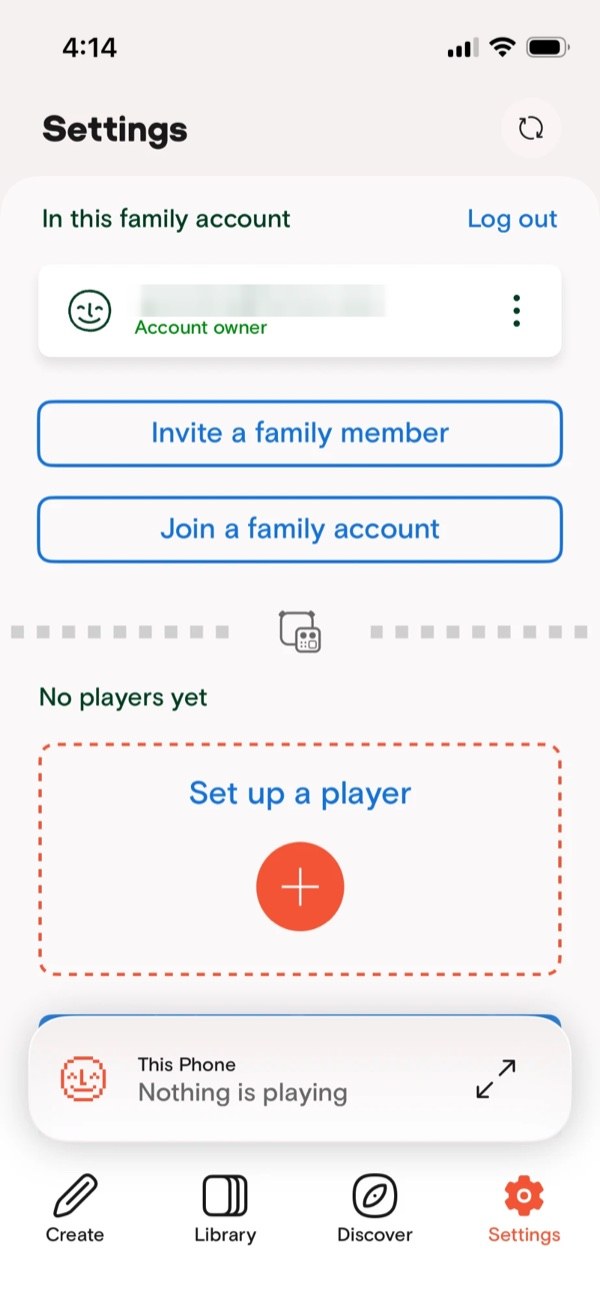
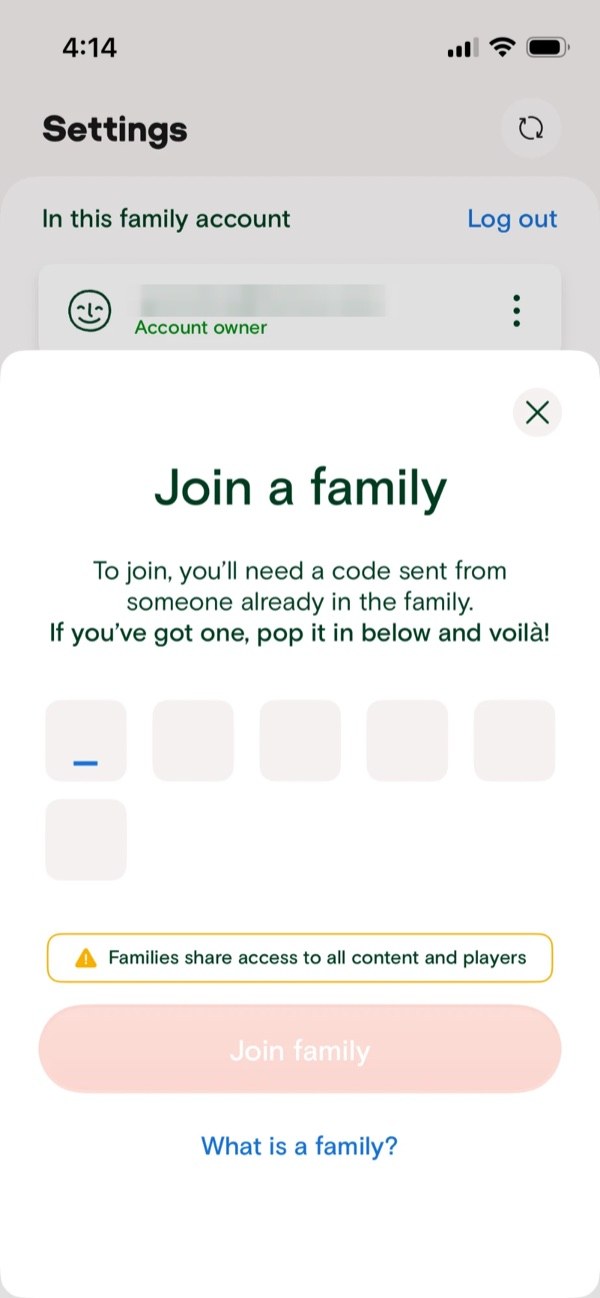
Join their Family Account first. They tap Invite a family member in the app's Settings and send you a code. You tap Join a family account and enter it.
Before you travel
-
1
Make a playlist
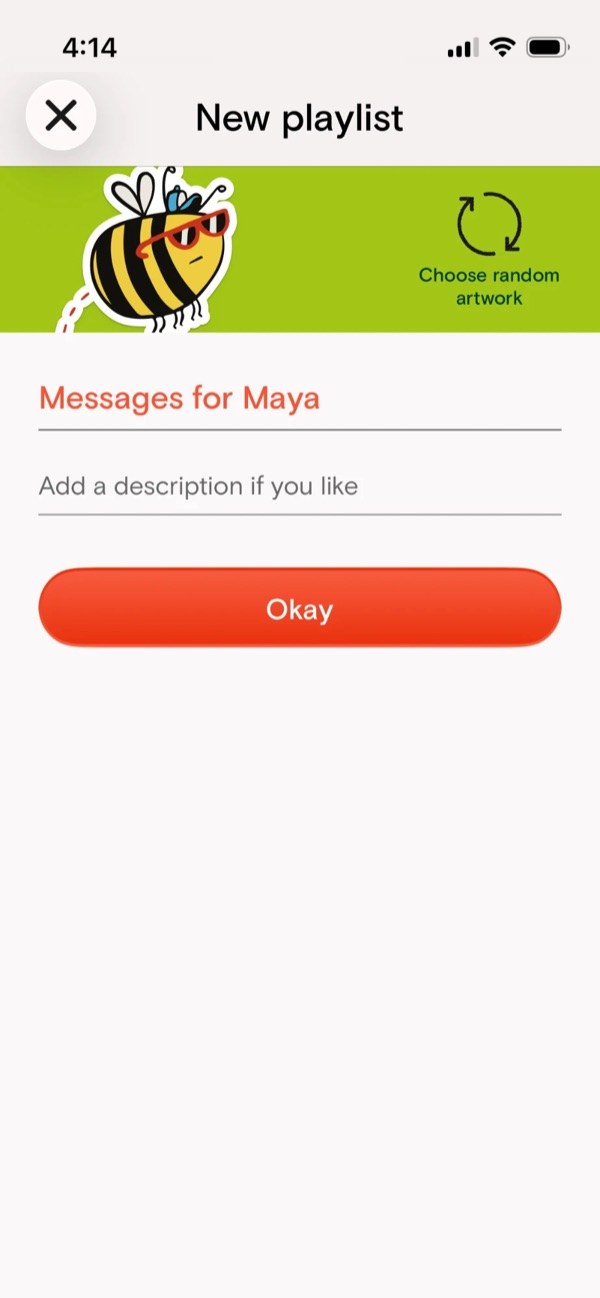
On the Create tab, tap Make a playlist.
Give it a name, like "Messages from Dad," and tap Okay.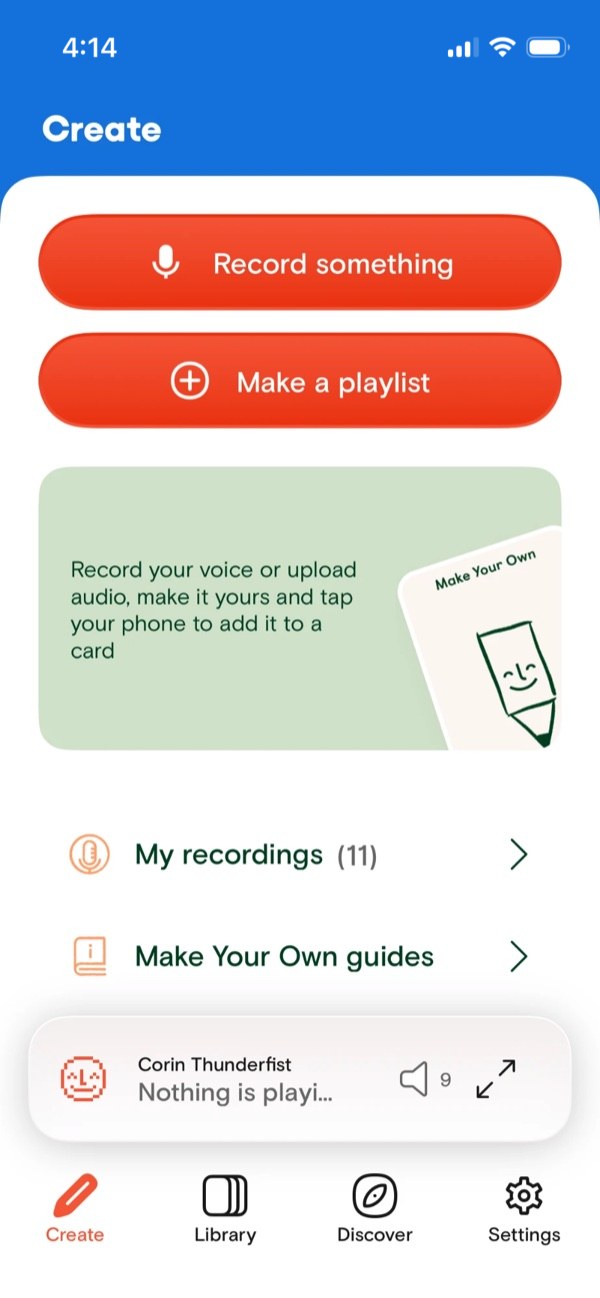
-
2
Record a test message
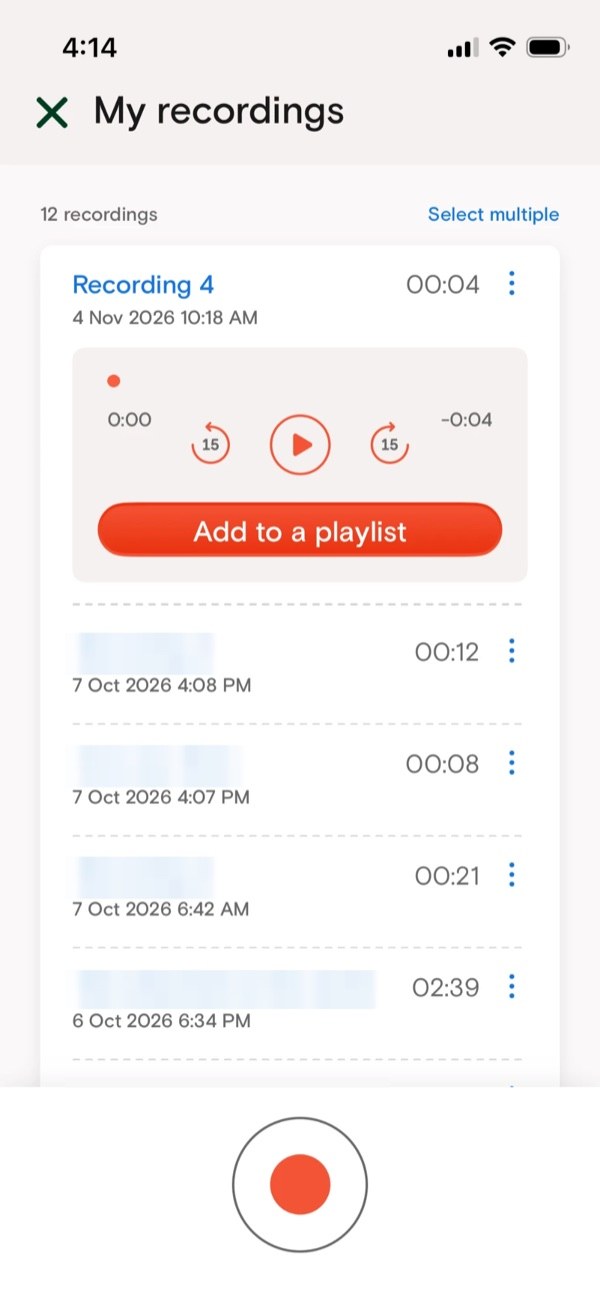
Tap Add new or existing recordings. That opens My recordings.
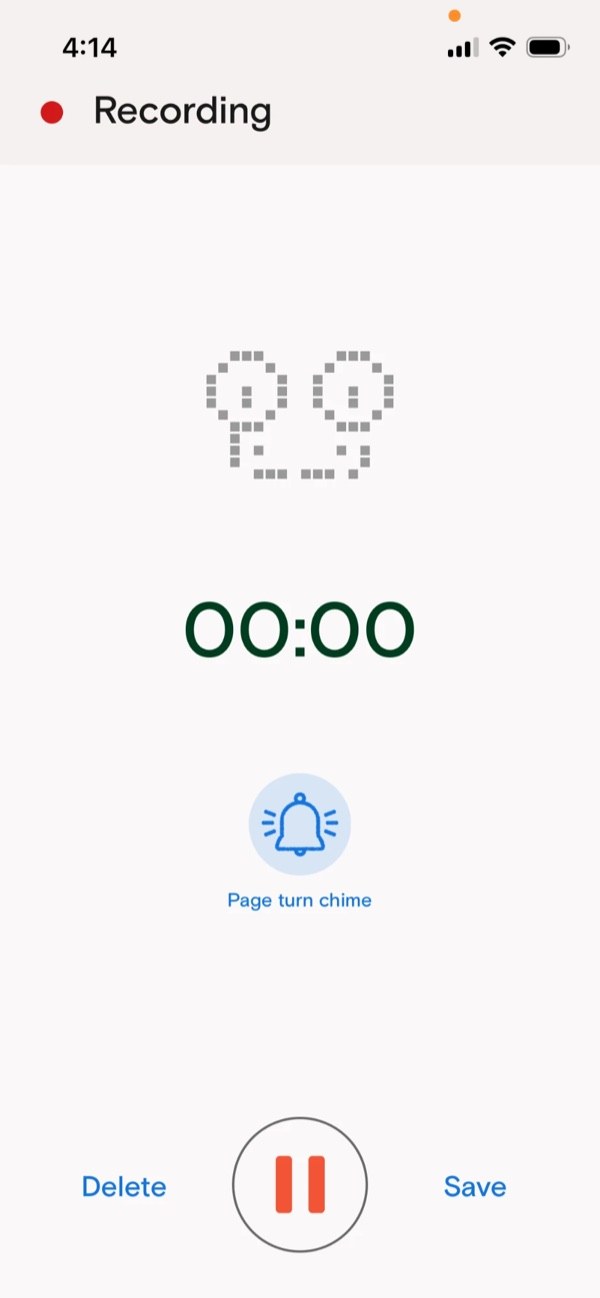
Tap the red button, wait for the countdown, and talk.
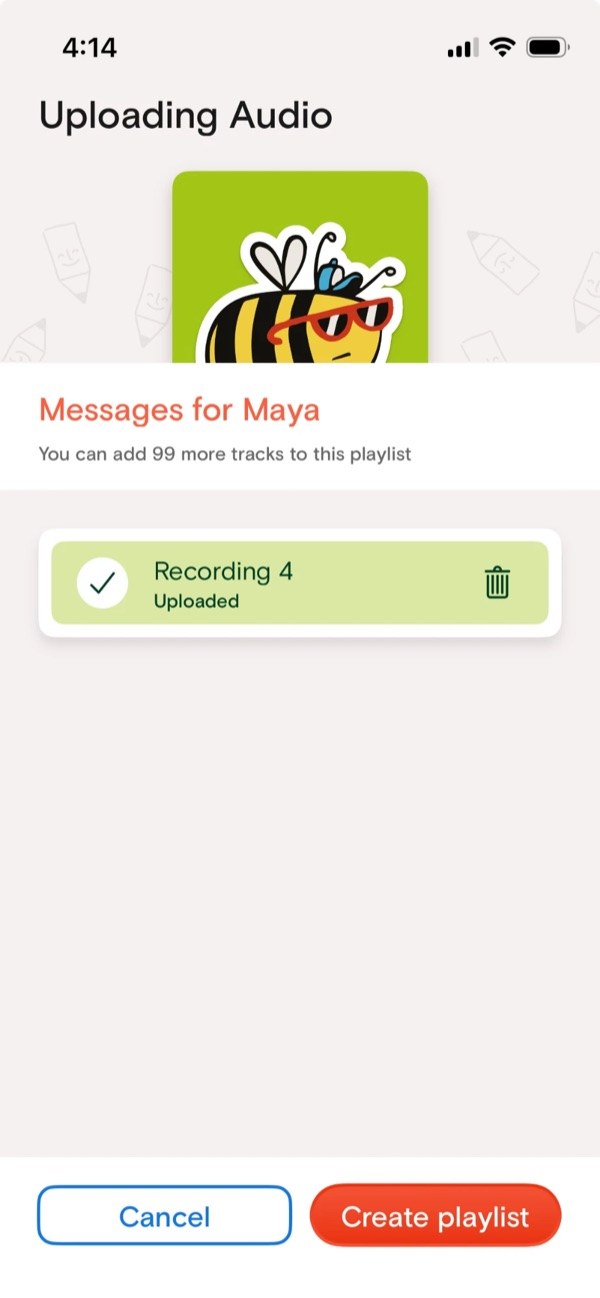
Save, then Add to playlist.
When it says Uploaded, tap Create playlist.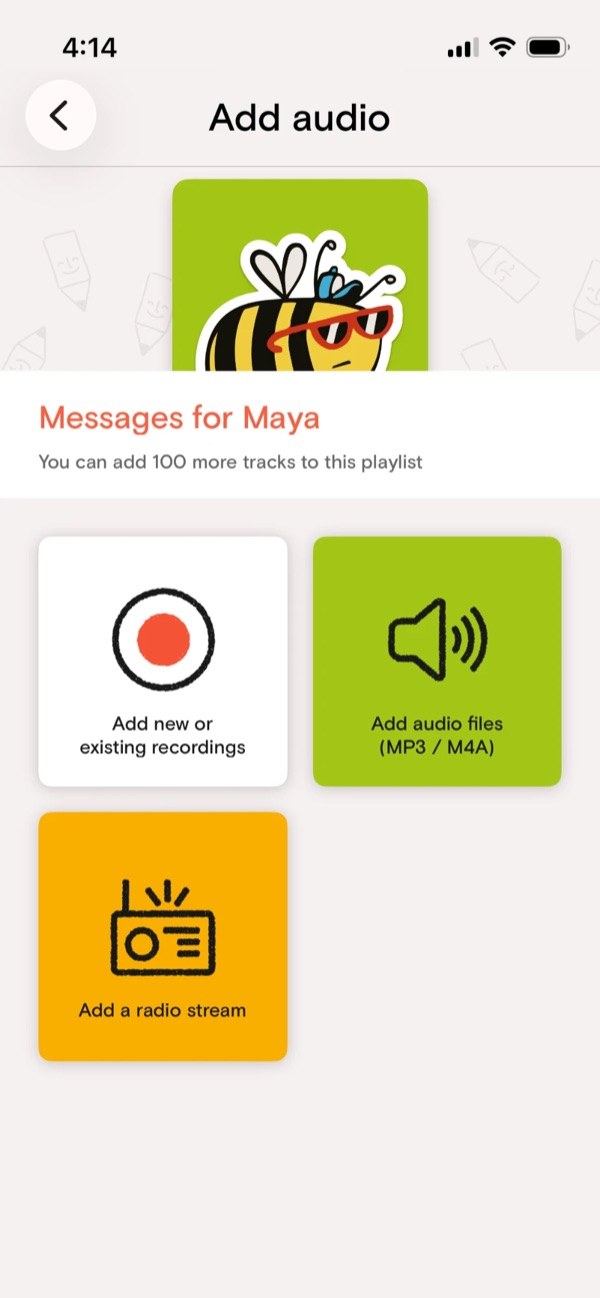
-
3
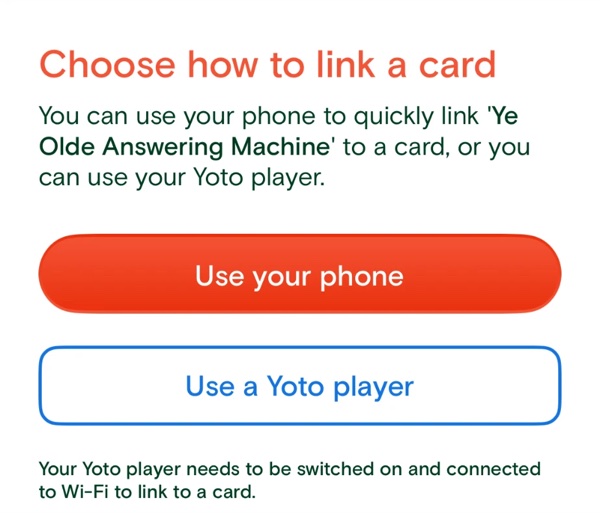
Link it to a card
Have a blank Make Your Own card handy.
Open the playlist and tap Link to a card.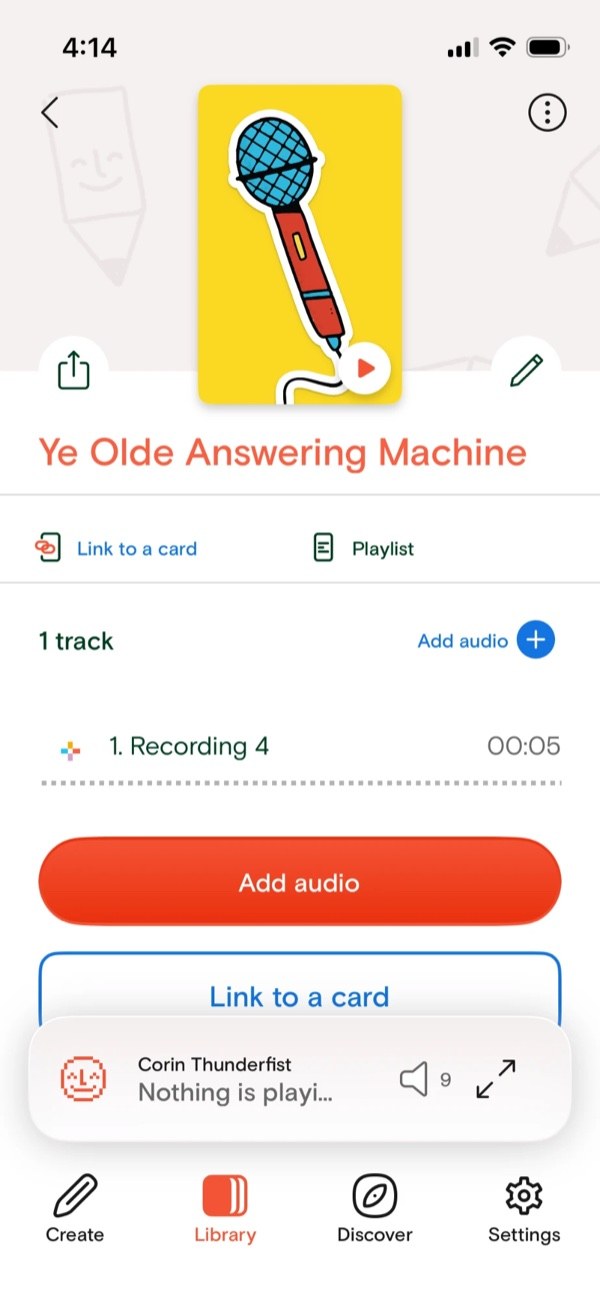
-
4
Hand over the card
Your child puts it in the player to check for messages.
Setup is done!
From the road
-
5
Add to the same playlist
Open the playlist, tap Add audio, and record the same way as above.
The message is on the card the next time it goes into the Yoto.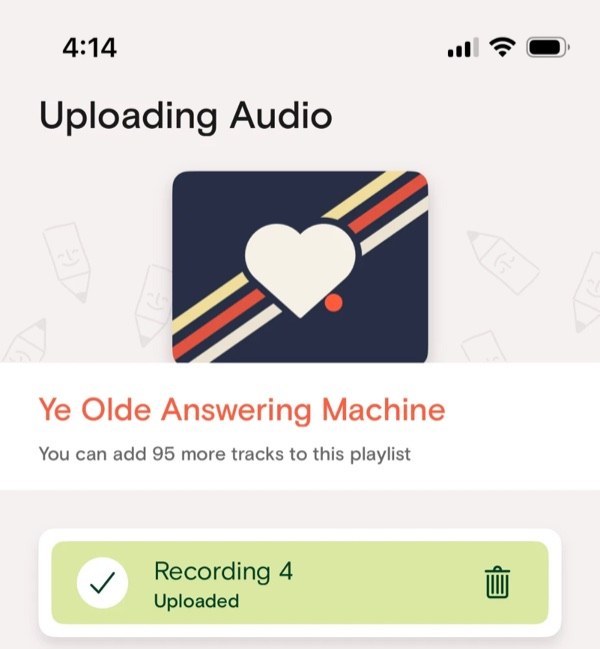
-
Pro Tips
- To get fresh messages: take the card out, count to three, and put it back in. A player only checks for new tracks at the time the card is inserted.
- New messages go at the end. If the card plays through to the end, the next time it will start from Track 1. Remind the kiddo turn the knob to find the latest track you've left.
- Text a notification. Tell someone at home after you leave a new message, because Yoto can't alert the kids a new message has arrived.
- Put the date in the title. Yoto defaults to "Recording 4" and so on. Rename so you can tell them apart later.
- Forgot to link a card before leaving? A grown-up at home on the same Family Account can find your playlist in the Yoto app and link the card for you.
That's the built-in approach, and for one parent on the road it works reasonably well.
How family and friends can contribute messages
In the simple case above, you're recording on the account that owns the Yoto player. That won't work for Grandma or dear Uncle Edmund.
Yoto's audio sharing guide covers a few ways to do this. Each has a catch. Here they are, best first:
- Send audio files
-
Uncle Edmund and cousin Sophie record MP3s with any voice recorder and send them to you, and you upload it
to your own playlist.
It's all on you
Family doesn't need to make a Yoto account here, but whoops! you've just become the family's switchboard. Every message is in limbo until you save it, upload it, and add it to the playlist, so when you're busy or away, the kids get no messages.
- Add them to your Family Account
-
Great for a spouse, but not ideal for many other use cases.
Limited options, and you lose control of the playlist
Yoto warns that "families share access to all content and players", every member can control your players and their settings, and remove other members. And an account can only be in one family, so folks who join your family account leave any others. For say, a grandad with grandchildren in two homes, this won't work for both.
- Let family sign in as you
-
Yoto's guide lists this option, too. We'd pass on it for security.
Password sharing
Your email and password give others access to everything your account can do, and a family with several relatives could quickly lose control of their password. Even worse if it's a password you reuse all over the internet.
- Grandma makes a Yoto account and manages a playlist herself
-
She records and makes a playlist in her own account, then sends you a sharing link. You
link it to a card. She essentially goes through the solo answering machine steps, above.
If cost is top priority and family is up for it, this is the route we'd pick.Where this option breaks down
Everyone starts with a chore
Before any records a word, they need the Yoto app, an account, a playlist, and a link to send you. Only the person who made a playlist can add to it, and a card points at one playlist at a time. So five relatives means five Yoto accounts, five playlists, five links, and five cards for your child to keep track of.
Links can be forwarded
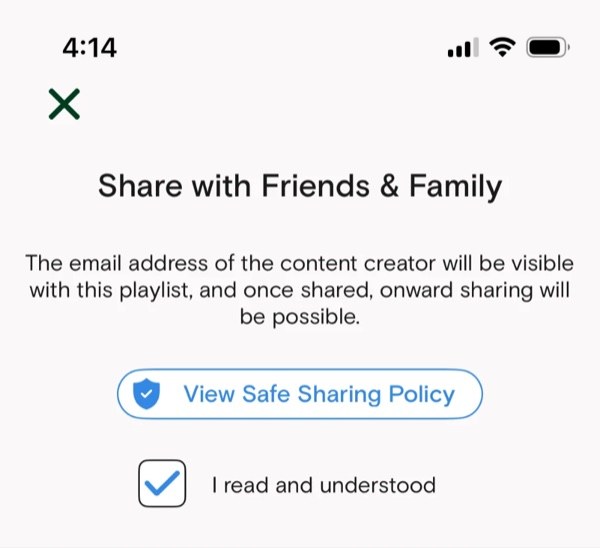
Yoto is clear: once a playlist is shared, anyone with the link can listen and pass it on, with the creator's email attached. For a story, that's fine. For your family's voices talking to your child, you probably want it locked down.
You don't hold the controls
A shared playlist belongs to its creator, so you can't edit it or remove a track from it. That's fine with one person you trust. It's a bigger issue across a whole family.
The answering machine goes silent
You never know when a message has arrived, and nothing intentionally prompts Grandma to leave one. Perhaps the first month is lovely. By the third, someone has to keep asking for notes.
Make it easy for the whole family
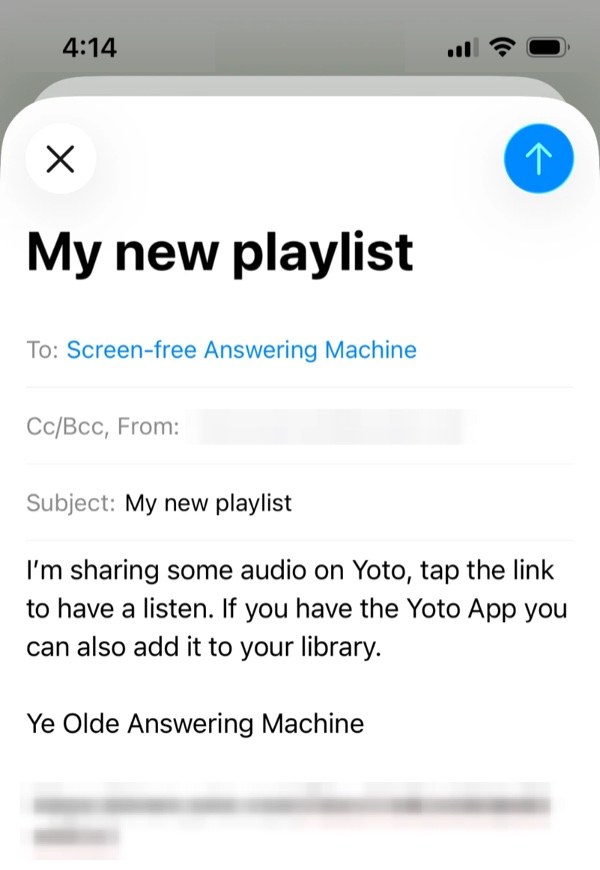
Screen-free Answering Machine works with just the Yoto owner's account. You set it up and link a card in the Yoto app, once. Everyone you invite leaves messages on one playlist that lives in your own Yoto library. Nobody else installs an app or makes a Yoto account. They sign in with a link or code sent to their email, so there's no password.
Grandma's first message
DIY with Yoto built-ins
- She downloads the Yoto app and makes an account.
- She records, and makes a playlist.
- She shares a link with you, with her email attached.
- You listen, accept it, and link it to a spare card.
- Your child has one more card to keep track of.
Screen-free Answering Machine
- She opens the invitation you sent, and taps to join.
- She taps the red button and talks.
- She sends it when she's happy with it.
Full comparison
| Yoto's Share | Screen-free Answering Machine | |
|---|---|---|
| Who can record | One person per playlist, so one card each. | Everyone you invite, on the number of tapes you choose. |
| Who needs a Yoto account | Everyone who records. | Only you. Everyone else signs in with their email. |
| Who's in charge | Each person, of their own playlist. | You. Invite, pause or remove anyone, and limit how many messages they leave per day. |
| Passing it on | Anyone with a shared link can listen and share it further. | No links to pass around. Nothing is public or re-shareable. |
| Who hears what | Anyone with a shared link hears every track. | In our app, people hear only their own messages. You hear them all, and everything plays on the Yoto. |
| Removing a message | Only the person who shared it. | You can delete any message, and everyone else can delete their own. |
| Keeping connections flowing | It's up to you to ask. | We automatically remind folks who've gone quiet, and you can also nudge for fresh messages with a button press. |
| Knowing there's a new one | Someone has to tell you. | Notifications: push, in-app, or a daily digest email. |
| Saving a favorite | Not available in Yoto; look for the file in the files app on the phone it was recorded on. | As the Yoto owner, you can save a copy to your phone to keep or share. |
| Telling people apart | The titles they give their tracks. | Structured track titles include name and day, and each person's avatar appears on the Yoto display. |
Bring the whole family in.
Try it free for 14 days, starting when the first message from family arrives.
Set up your answering machineCancel any time. All messages remain in your Yoto library.
The Yoto steps were taken from Yoto's help pages (recording and playlists, sharing with loved ones, safe sharing) in November 2026. Their app changes, so a button may have moved. We're not part of Yoto, and they haven't reviewed this page.